
Imagine your computer starting up in seconds, running quieter, and staying cool. If that sounds like magic, it’s mostly thanks to a little thing called an SSD.
An SSD, or solid-state drive, is faster and more reliable than traditional hard drives because it stores data using An SSD, or solid-state drive[^1], is faster and more reliable than traditional hard drives because it stores data using flash memory chips, not spinning parts
[^1]: Understanding solid-state drives can help you make informed decisions about storage solutions for speed and reliability.
, not spinning parts. This means much quicker start-up times, less noise, and a computer that just feels smoother to use [1][3][10].
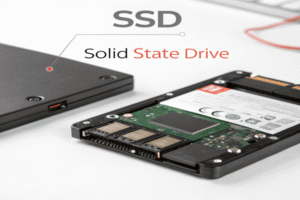
Many people feel intimidated by computer storage jargon. I remember struggling to figure out why my old laptop took forever to load, even after reinstalling Windows. When I learned the basics of SSDs, things finally clicked for me. Let’s break things down into plain language and some simple tips you can use to confidently spot— and even explain— what a SSD is, even if you’re not “techy” at all.
What is SSD in simple words?
An SSD is a storage device that saves files using special chips instead of a spinning disk. This makes computers faster, quieter, and more durable than hard drives [1][3][10].
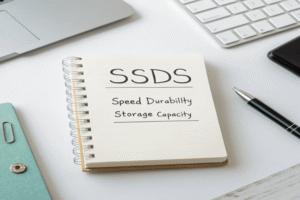
Think of a hard drive as a record player with spinning disks. If it gets a bump or dropped, something might break because everything’s mechanical inside. Now, imagine storing your music on a phone or in the cloud—you don’t see anything moving. That’s how an SSD works: it uses flash memory chips to save data, making it much less likely to break and much faster to access your stuff [3][10]. Most phones, tablets, and new laptops now use SSDs for this reason.
Comparison Table: HDD vs SSD
| Feature | Hard Disk Drive (HDD) | Solid State Drive (SSD) |
|---|---|---|
| Data Storage | Magnetic spinning disk | Flash memory chips |
| Moving Parts? | Yes | No |
| Speed | Slower (several secs) | Much faster (few seconds) |
| Durability | Prone to shock damage | Shock-resistant, more durable |
| Noise | Audible spinning sound | Silent |
| Power Usage | Higher | Lower |
| Typical Uses | Old laptops/desktops | New devices, most phones |
How to understand which drive is SSD?
To find out if your computer has an SSD, open the Task Manager (Windows), Defragment and Optimize Drives, or Device Manager. Look for “SSD” or “Solid state drive” listed next to your disk [5][7].
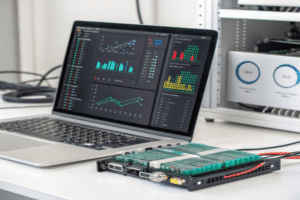
If you’re on a Windows computer, press Ctrl + Shift + Esc to open Task Manager, click on the “Performance” tab, then click your listed drives. It will say “SSD” if that’s what you have. Alternatively, search for “Defragment and Optimize Drives” in Alternatively, search for “Defragment and Optimize Drives[^1]” in Windows Search
[^1]: Understanding this feature can help improve your PC’s performance and speed by optimizing disk usage.
, and look for the “Media Type” column—it should state “Solid state drive” next to the disk name [5][7]. For more details, you can check Device Manager or use PowerShell with the command Get-PhysicalDisk | Format-Table -AutoSize to list the type [5][7]. Want to check your laptop, but can’t open it? Don’t worry—these tools work without unscrewing anything [6].
Step-by-Step Table: How to Identify SSD on Windows
| Method/Tool | What to Do | What to Look For |
|---|---|---|
| Task Manager | Ctrl+Shift+Esc → Performance tab → select drive | Says “SSD” or “HDD” |
| Defragment/Optimize | Search “Defragment” → Open “Optimize Drives” | “Solid state drive” under Media Type |
| Device Manager | Look under “Disk Drives” | Model name often shows “SSD” |
| PowerShell | Run Get-PhysicalDisk | Format-Table -AutoSize |
“MediaType” shows SSD or HDD |
How to define SSD?
An SSD (solid-state drive) is a device that stores data using integrated circuits called flash memory, with no moving parts. This makes it much faster, quieter, and more reliable than a hard drive with spinning disks [1][3][9][10].
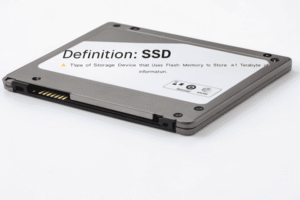
SSDs rely on SSDs rely on semiconductor technology—specifically, flash memory cells[^1]
[^1]: Exploring flash memory cells will provide insights into the core technology behind SSDs and their performance benefits.
—specifically, flash memory cells—where data is stored like tiny electronic notes kept safe even if the device is powered off [1][3][9][10]. Inside an SSD, there’s a controller (like a mini-brain) that organizes all the reading and writing, making sure you can access documents, photos, or programs almost instantly. Unlike hard drives, there’s nothing mechanical to wear out or break, making SSDs popular for laptops, tablets, and even big servers now. There are different types of SSDs—SATA, NVMe, and PCIe—but their job is always the same: store your stuff quickly and keep it safe [1][3][9][10].
SSD Summary Table
| Aspect | SSD Highlights |
|---|---|
| Stands for | Solid-State Drive |
| Main advantage | Uses flash memory, no spinning disks |
| Key benefits | Speed, durability, no noise, low power |
| Common devices | Laptops, tablets, phones, new PCs |
| Storage type | NAND flash memory |
| Limitation | Costs more per GB than old hard drives |
| Why upgrade? | Quicker boot, faster programs, better reliability |
Conclusion
An SSD is a modern storage device using flash chips, not spinning parts, making computers faster, quieter, and tougher. You can spot, check, and explain SSDs using simple tools and plain language [1][3][5][7][10].